supercaffeinate
Keeps a Mac fully awake until you turn it off, or for a set time: no system sleep, no display sleep, no screensaver, no auto-lock, and closing the lid does not put the machine to sleep. Controlled from the terminal or from a small menu bar app.
Menu bar app

The status item: a filled cup while awake, an outline cup while off.
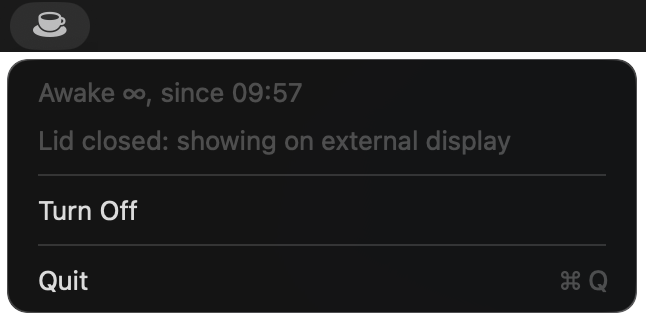
The open menu while on: how long it has been awake, what the lid is doing, and the switch.

What it does
supercaffeinate on:
- holds
caffeinateassertions for idle, disk, system and display sleep - sets the screensaver idle time to 0 (the previous value is saved and restored)
- runs
pmset -a disablesleep 1, so closing the lid or choosing Sleep from the Apple menu does nothing - starts a small watcher that follows the lid once a second
supercaffeinate off undoes all of it and restores normal sleep and lock
behavior. Each switch posts a notification. While the menu bar app is running
it posts them with its own icon, so allow SuperCaffeinate in System Settings >
Notifications (and in any Focus mode allow list); when the app is not running
the script falls back to osascript, which shows up as Script Editor.
supercaffeinate on 8h does the same with an auto-off timer: when the time is
up the watcher runs the normal off path (the notification says "OFF (timer
expired)") and the usual sleep and lock behavior comes back.
Lid handling
The display is never allowed to sleep, so the "require password after the display turns off" lock never fires. What happens when the lid closes depends on what is plugged in:
- Built-in display only: the screen is blacked out by
screenblank, a tiny helper that sets every display's gamma to zero. The panel is still on as far as macOS is concerned, so nothing locks and everything keeps running. Opening the lid kills the helper and the picture comes straight back. - External display connected: no blackout. The Mac keeps running in clamshell mode and the external screen stays on. Unplugging the external display while the lid is closed applies the blackout.
Menu bar app
SuperCaffeinate.app puts a coffee cup in the menu bar: filled when on,
outline when off, a warning triangle if the state is stale. Click it to see
how long the Mac has been held awake (or how long is left on a timer) and to
turn it on or off. Turn On stays on indefinitely; Turn On For... asks for a
number of hours (0.5 is fine, blank means indefinite). It polls the
state file every 2 seconds, so changes made from a terminal or a hotkey show up
right away. It is launched at login by a LaunchAgent. See
menubar/README.md for details.
Install
git clone https://github.com/partypancake8/supercaffeinate.git
cd supercaffeinate
./install.sh
supercaffeinate-setup
install.sh copies the scripts to ~/bin, compiles screenblank from
screenblank/main.swift into ~/bin/screenblank (no binary is shipped in
this repo), builds the menu bar app into ~/Applications, renders the
LaunchAgent with your home directory and loads it. It is safe to re-run.
supercaffeinate-setup only needs to run once. It installs
/etc/sudoers.d/supercaffeinate, a NOPASSWD rule for your user limited to
pmset -a disablesleep 1 and pmset -a disablesleep 0, so the toggle works
from a hotkey or the menu bar with no password prompt. It asks for your admin
password once.
Make sure ~/bin is on your PATH.
Usage
supercaffeinate on [DURATION]
supercaffeinate off
supercaffeinate toggle [DURATION]
supercaffeinate status
DURATION is optional. Leave it out (or pass 0, inf, infinite or
forever) to stay awake until off. Otherwise it is hours, minutes and
seconds such as 8h, 90m, 2h30m or 45s, or a bare number of minutes
(45). When the timer runs out supercaffeinate turns itself off. status
shows the time left, e.g. auto-off in 7h 42m (at 19:35).
toggle is safe to fire from a hotkey with no terminal: a lock prevents rapid
presses from stacking. To bind it to a key, point Karabiner-Elements,
Hammerspoon or a Shortcut at supercaffeinate toggle.
Requirements
- macOS 13 or later, Apple Silicon or Intel
swiftcfrom the Xcode Command Line Tools (xcode-select --install)- Python 3 with Pillow, only if you want to regenerate the app icon
Caveats
- While on, sleep is disabled system-wide. A laptop in a bag with the lid closed will keep running and draining the battery until you turn it off.
- State lives in
/tmp, so a reboot resets everything to normal. If a reboot happens while it is on,pmset disablesleepmay still be set; runsupercaffeinate offonce to clear it. - The lid blackout only changes gamma. The backlight stays on at whatever brightness it was.
Uninstall
supercaffeinate off
launchctl bootout gui/$(id -u)/com.sawyer.supercaffeinate-menubar
rm ~/Library/LaunchAgents/com.sawyer.supercaffeinate-menubar.plist
rm -rf ~/Applications/SuperCaffeinate.app
rm ~/bin/supercaffeinate ~/bin/supercaffeinate-setup ~/bin/screenblank
sudo rm /etc/sudoers.d/supercaffeinate